 Pie
PieSplit costs with a Pie
For a trip with friends or bills at home, My Pies keeps your shared costs in one group, called a Pie. Add what you paid, choose each person’s share, and see who owes whom.
Create a Pie
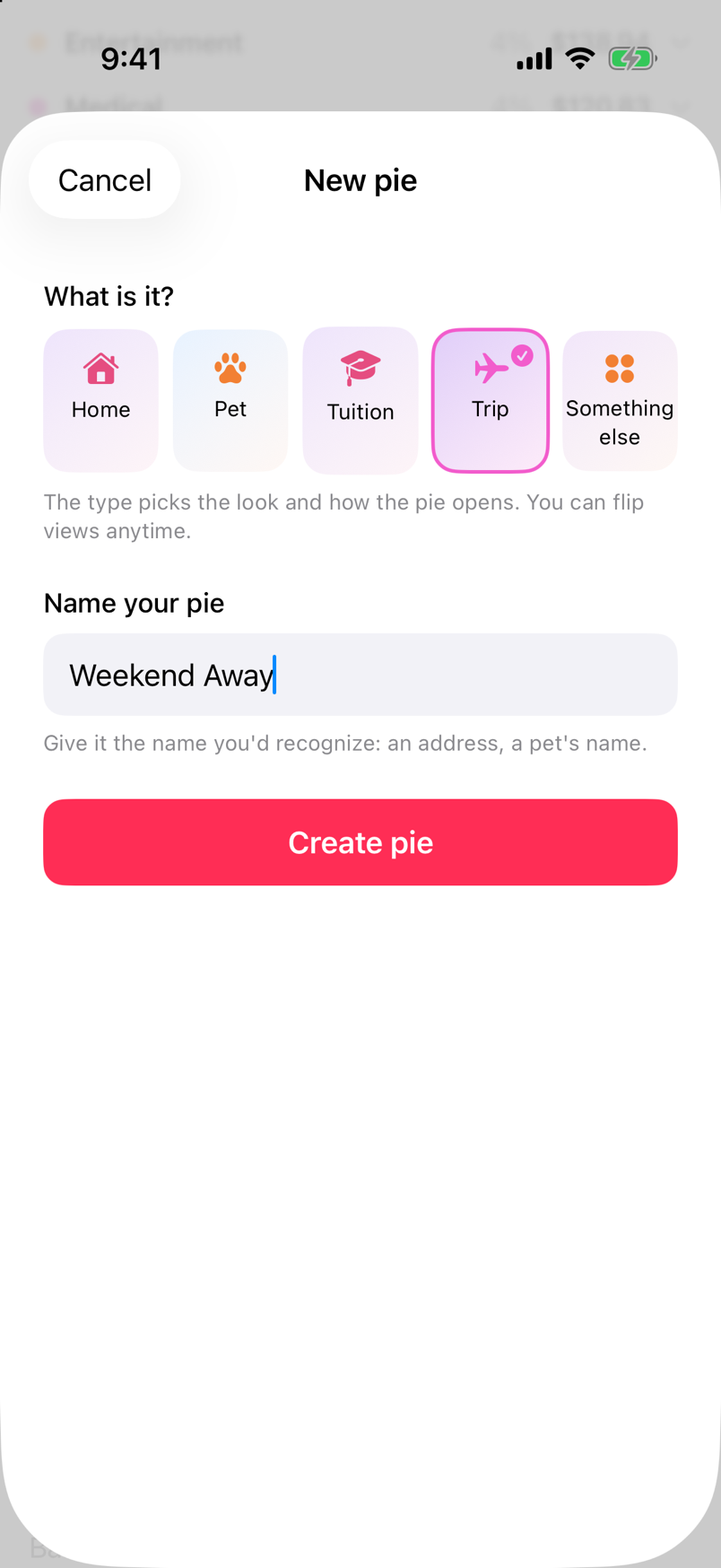
- Open the Profile tab and scroll to My Pies.
- Tap Create a pie. Choose a type, such as Trip, give it a name, and tap Create pie.
- Tap Invite and choose your friends. Add someone as a friend before inviting them to a Pie.
- Ask your friends to open the Inbox tab and accept the invite to join.
Who can see your Pie
Members can see the purchases you add, their splits, and the group’s balances. Your Profile’s Friends / Only me settings don’t change who can see those shared costs.
To manage members in an active Pie, tap the member photos at the top. Use Invite to add friends. In Members, tap someone’s three-dot menu for Remove from pie.
Add a purchase
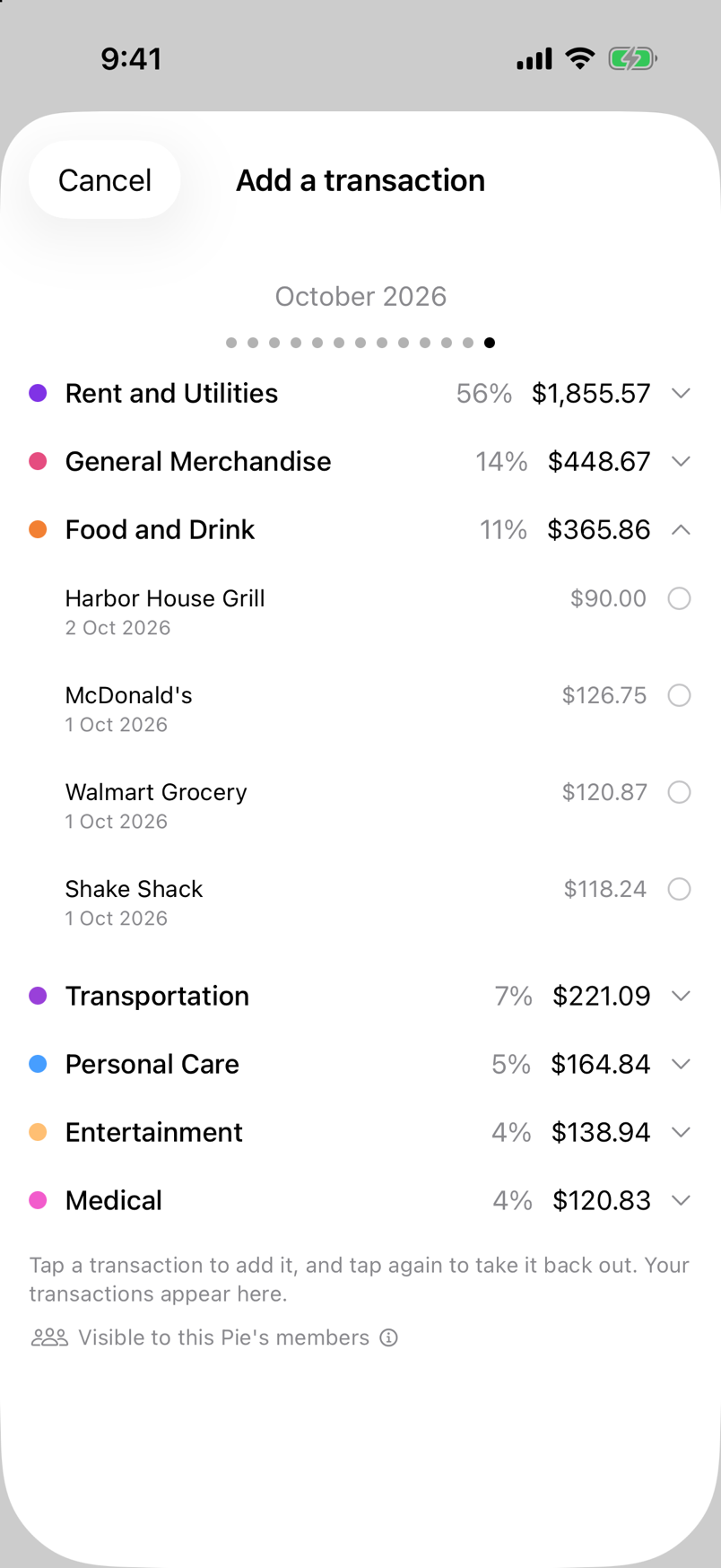
- Open the Pie and tap Add a transaction.
- Swipe to the purchase's month and tap a transaction you paid, such as dinner.
- Tap Done. Each member adds their own purchases.
Choose each person’s share
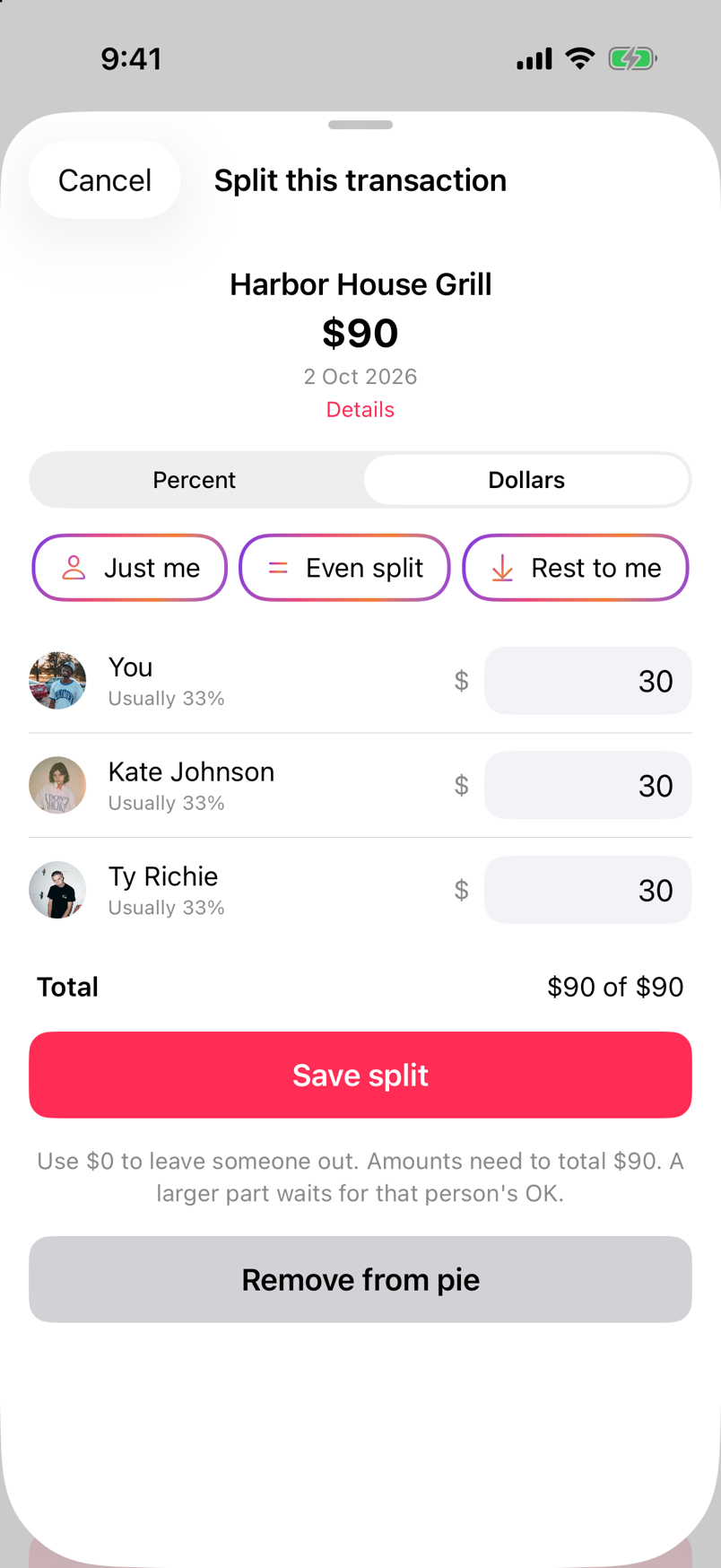
- Tap a purchase you added to the Pie to open Split this transaction.
- Tap Even split to share the cost equally among all members. For a different split, choose Dollars or Percent and enter each person’s share. Enter zero for anyone who wasn’t part of the purchase.
- Tap Save split.
In an Open Pie, split changes apply right away. In a Locked Pie, increasing another person's share needs approval. Split pending means the usual split stays while you wait. Older expenses may be read-only.
Check your balance and paybacks
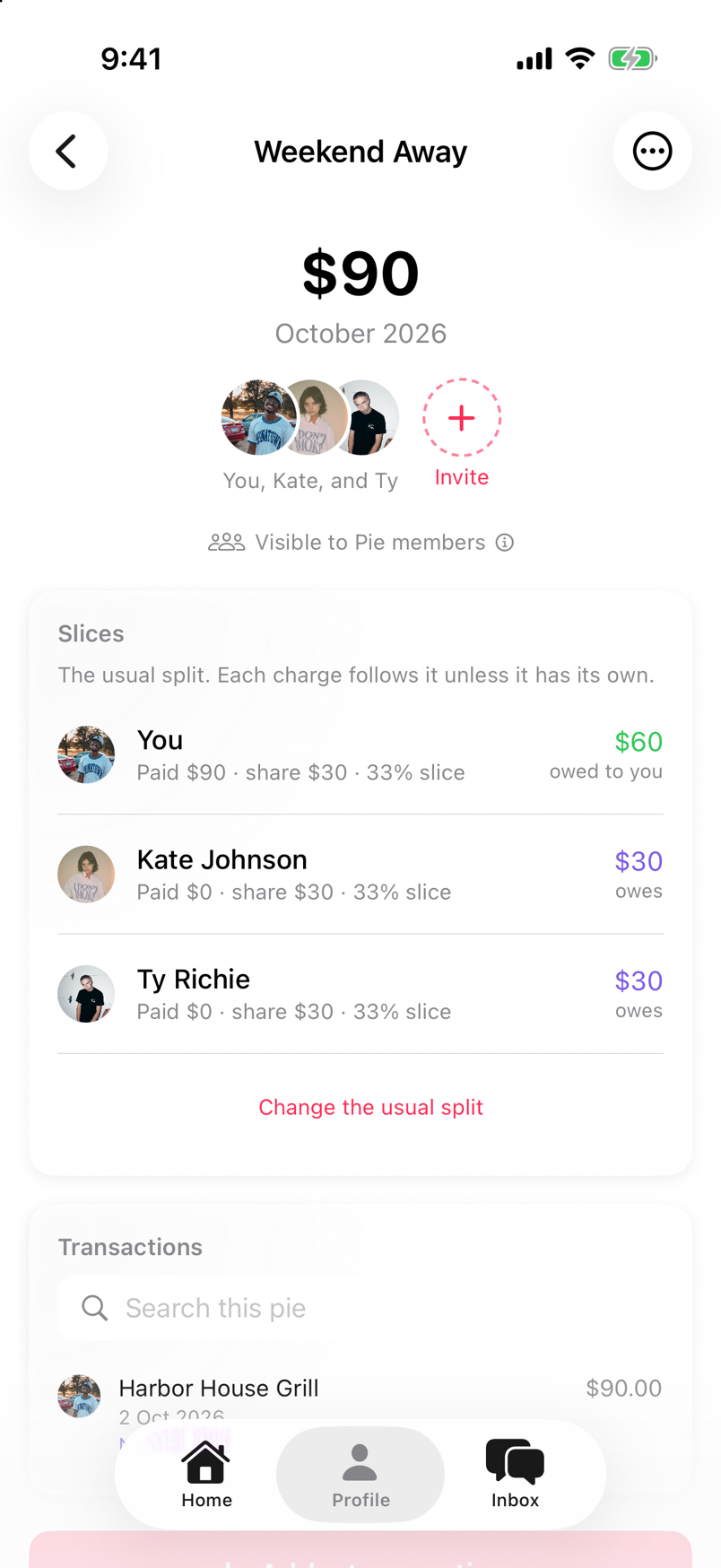
Check You're owed, You owe, or Even for your balance. The Slices card shows what each person paid and their share.
Your share counts toward your budget, explained on the next page.
Record a payback
Pay each other outside Pie, such as through Zelle. For now, recording a payback in Pie starts with a real incoming transfer in one of your linked accounts.
- In the Pie, tap Someone paid you back?.
- Find the transfer under Incoming transfers and tap Payback.
- Look under Marked as paybacks for the transfer’s Payback label.
This keeps the transfer out of income. When you’re owed money, it lowers the amount shown as owed to you. The marker is private: it doesn’t mark the original purchase as paid, change the split, or change anyone else’s balance.
We plan to add more ways to record repayments. Manual repayment entries aren’t supported yet.
This guide describes Pie app version 1.0.4.